From time to time, I decide that there is some functionality that I simply must have, without the faintest idea of how I might achieve it. But a journey starts with a single step, so I start searching, and usually I can get to a place I like because there is nothing new under the sun. I want to start documenting the little discoveries I have made or pieced together. They might help someone else in a similar boat, after all
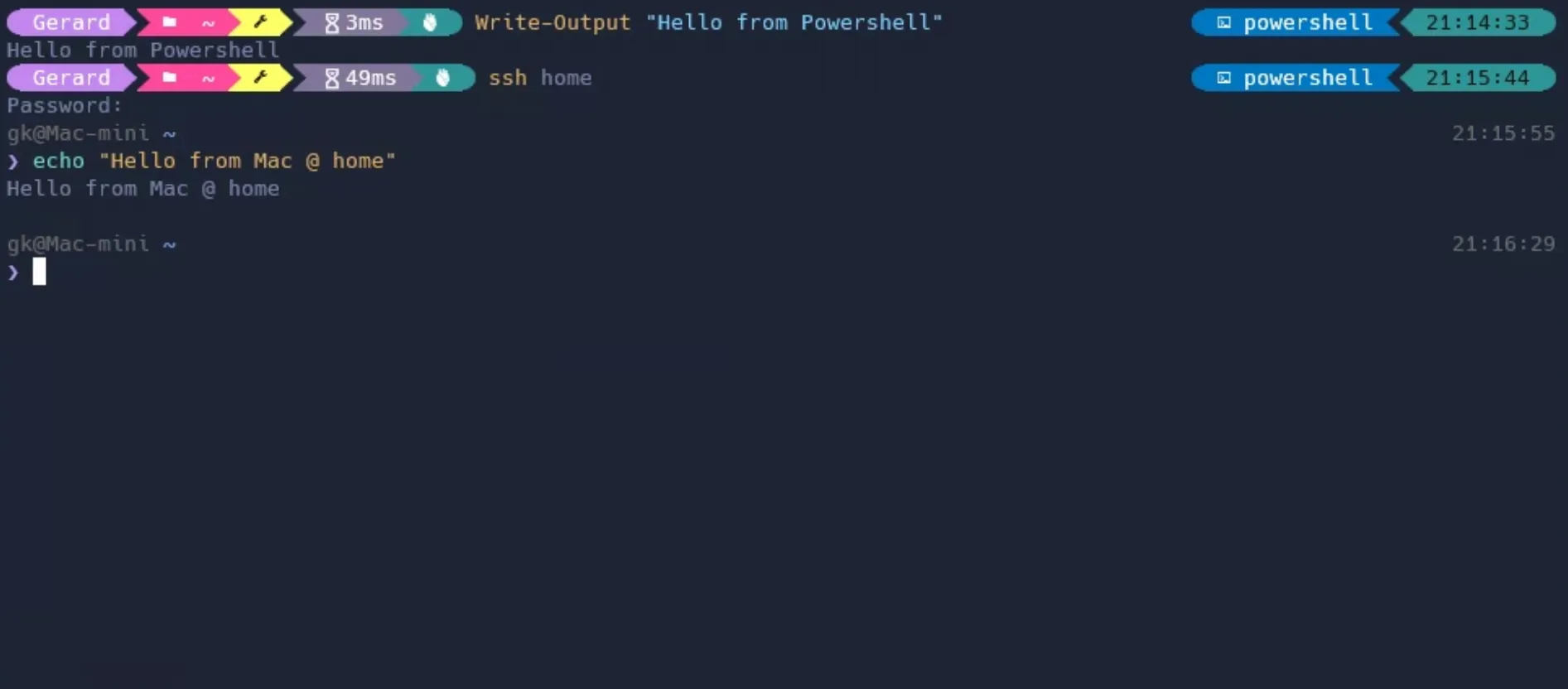
I use a Windows 11 PC on a daily basis. I have a Mac at home. One can use SSH to “tunnel” via the command line from machine to machine across networks, which I have made use of many times in the past. But SSH had always proved problematic on Windows, as do so many things for those used to Unix like systems, which seem to have no trouble interoperating.
Having said that, I am using Windows 11 now, and what I am about to say applies both to Windows 11 and Windows 10. Windows has actually got a lot better in recent years. I know, shocking. But true. And one of the ways it has improved is the inclusion of openSSH.
This guide applies to Powershell. It probably works in cmd as well, and, in another demonstration of Windows improvement in recent years, you can install WSL for a full Linux environemnt in which using SSH is very simple, and for which countless guides exist on the internet.
First, ensure that it is installed and running.
- Open settings, click Apps
- Under Apps and Features click Optional Features
- Look for OpenSSH Client If it is not in the list
- Click + Add a Feature. Install OpenSSH Client
Run Windows Terminal as an administrator (right click on the icon and select that option). I am using Powershell for the remainder of this explanation—it will be different if just using cmd.
ssh <user>@<ip address>
You will be prompted for a password for the user at the machine you are intending to access. Enter it.
You are now effectively sitting in front of the remote machine. Pretty cool.
To make it simpler, create a file called config in your .ssh folder. SSH related configuration is stored at $USERPROFILE/.ssh (i.e. C:\Users\{username}\.ssh). In Powershell, use the command New-Item -ItemType file config while in that directory to create the requisite file, which you can then edit in your favourite text editor and put someting like the following in there:
Host home
    Hostname <ip address>
    User <user>
So from now on you can type ssh home and enter the password for the same effect.